

Today marks a milestone for Events Manager as we unveil our most substantial update since its debut  ! Introducing version 1.2.0, this update encompasses a suite of new features, including an enhanced calendar, versatile display modes, the requested Full Day and Repeating Events options, among other significant enhancements.
The new price from this version will be $65. To our customers who previously purchased it for $45, we're offering the option to contribute an additional $20 to support our development efforts (click here to upgrade). While this additional payment is not mandatory and you will still receive the update regardless, it greatly helps us cover the extensive development costs of v1.2.0. Your support is deeply appreciated, but please know that it's okay if you choose not to contribute the extra amount.
We hope you enjoy the new and improved Events Manager!

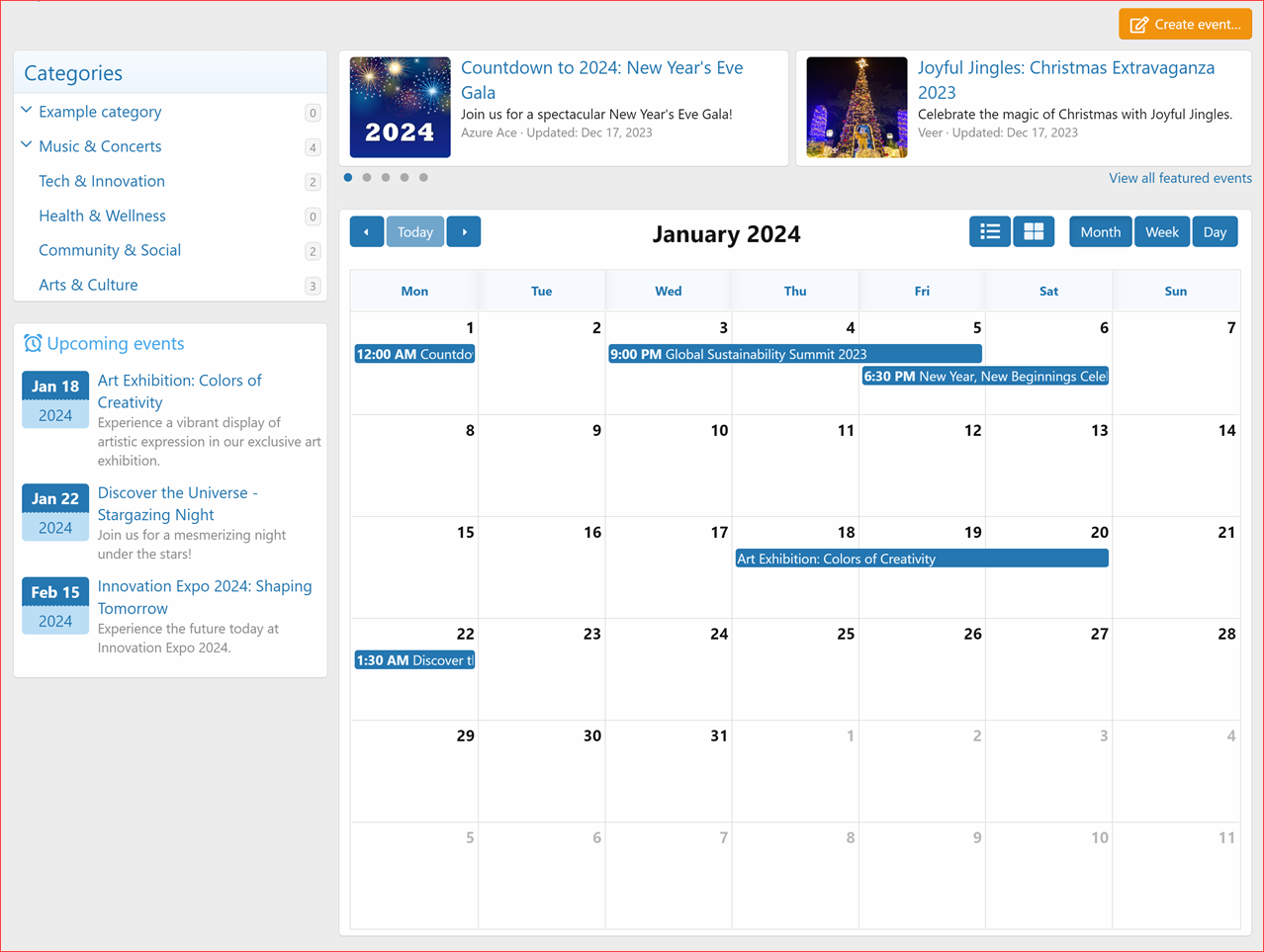
Month view
List month view (default)
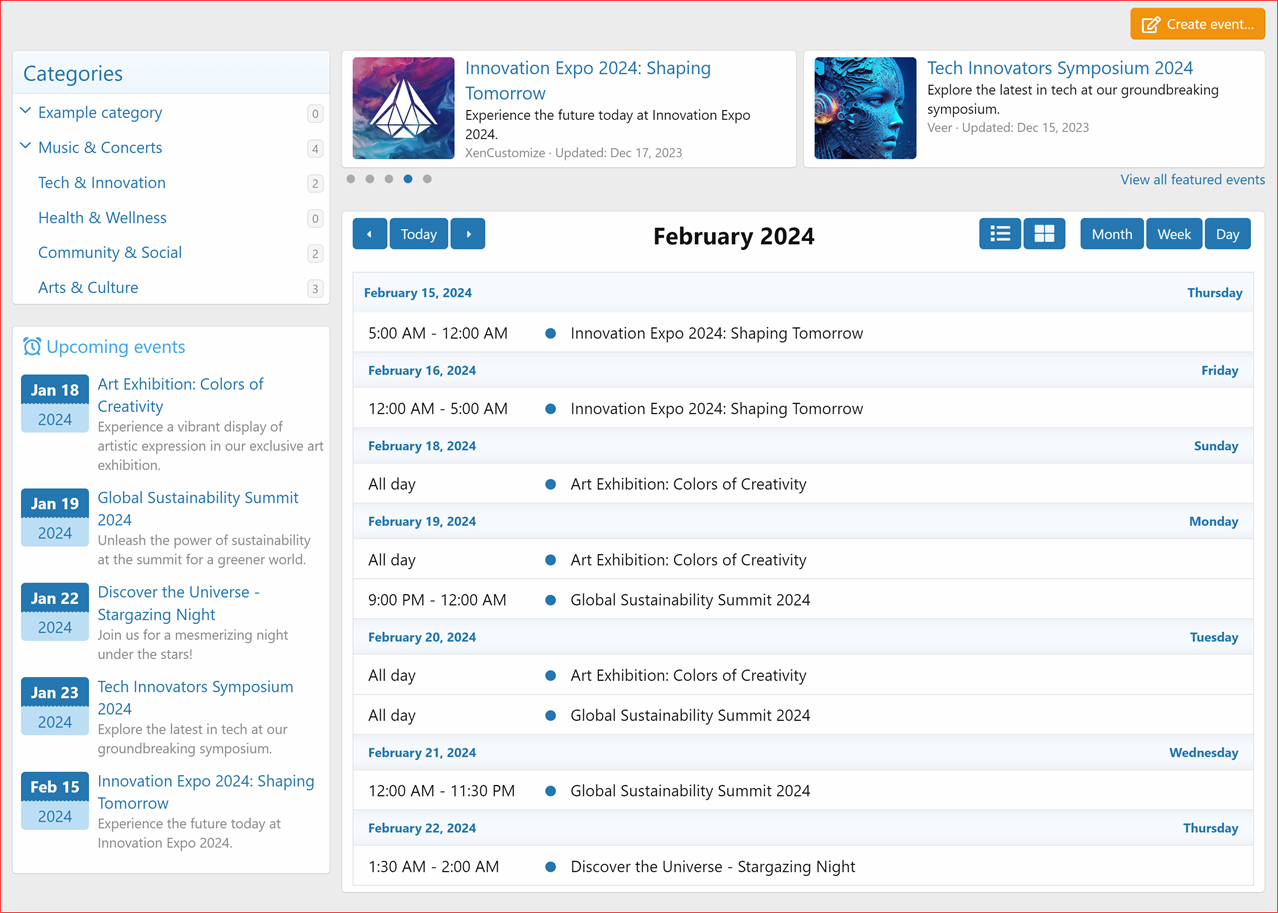
List week view
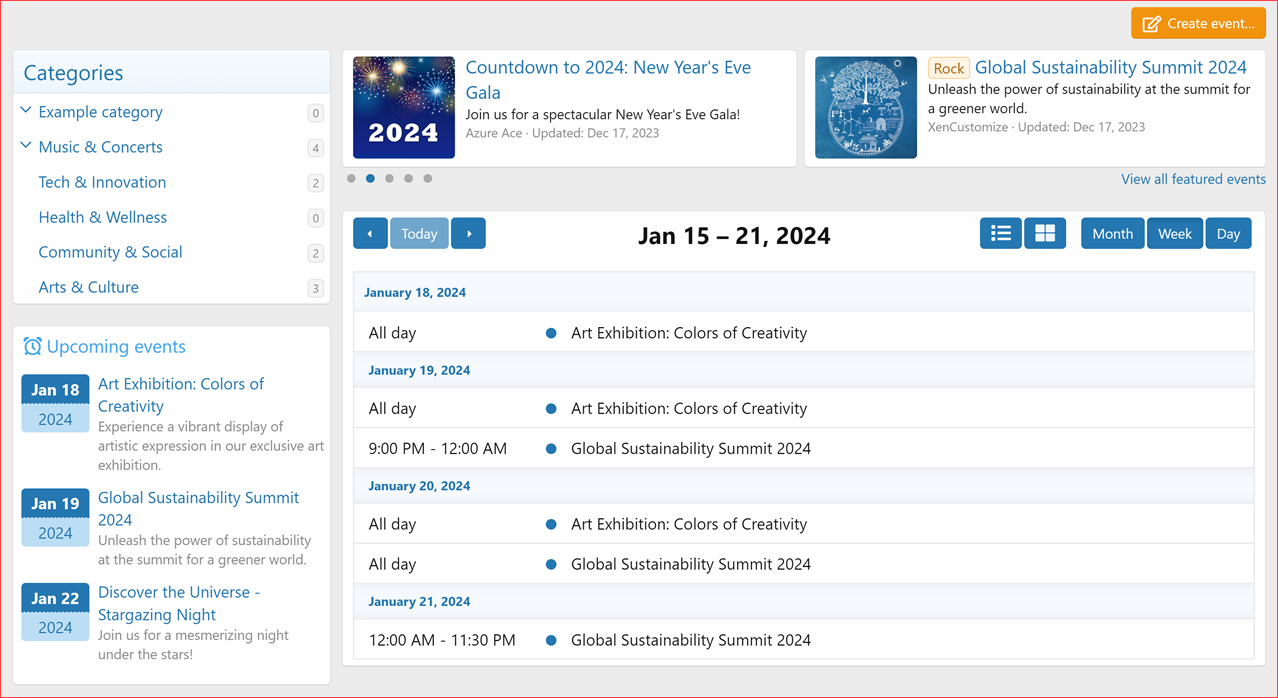
List day view
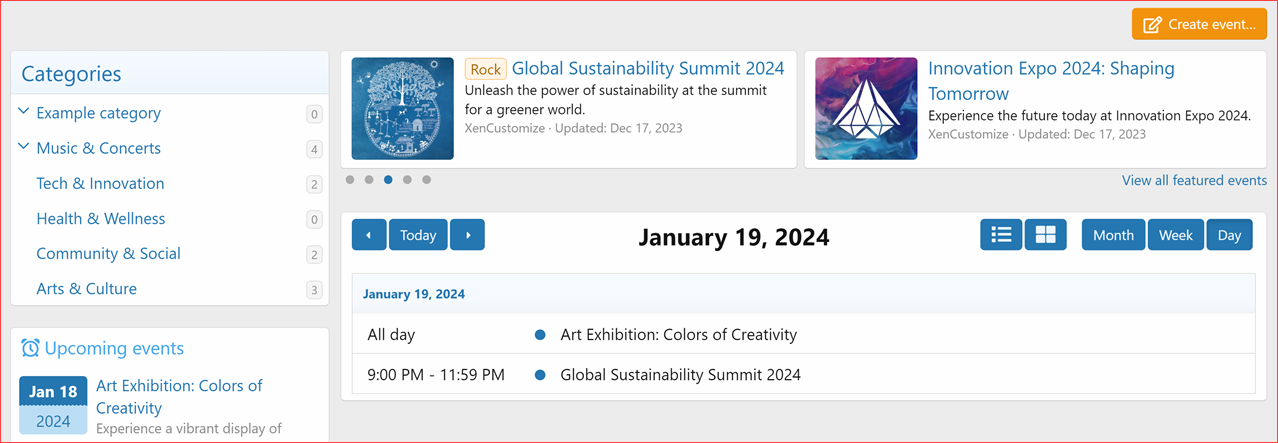
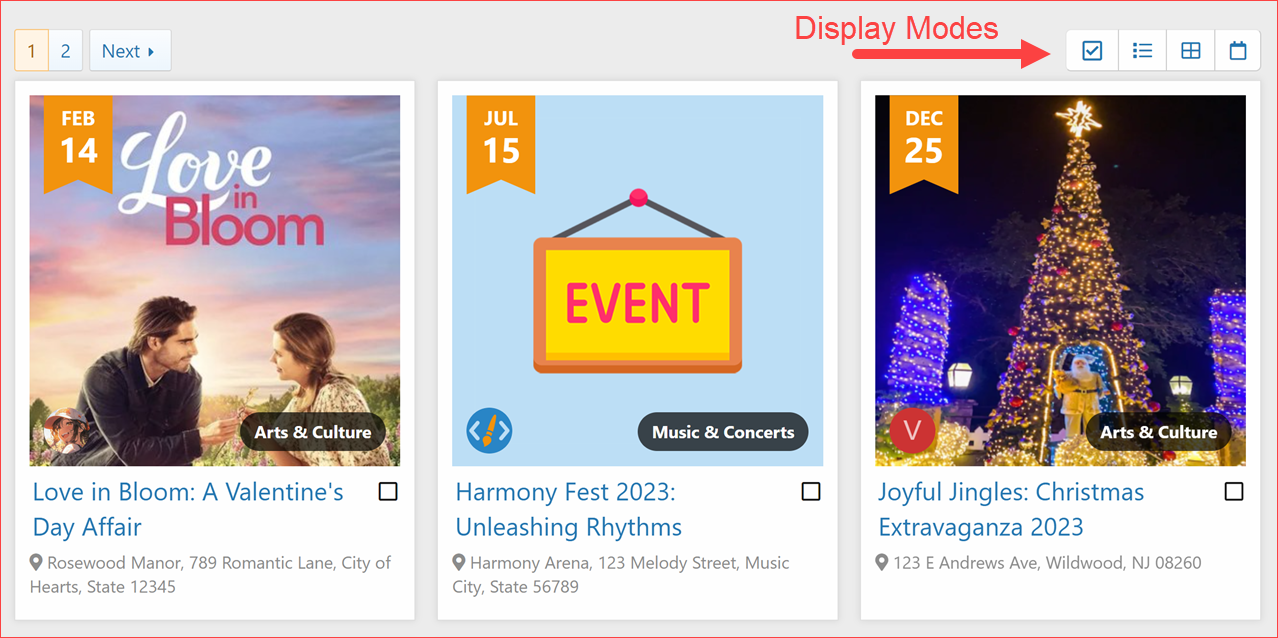
Display mode buttons on list mode
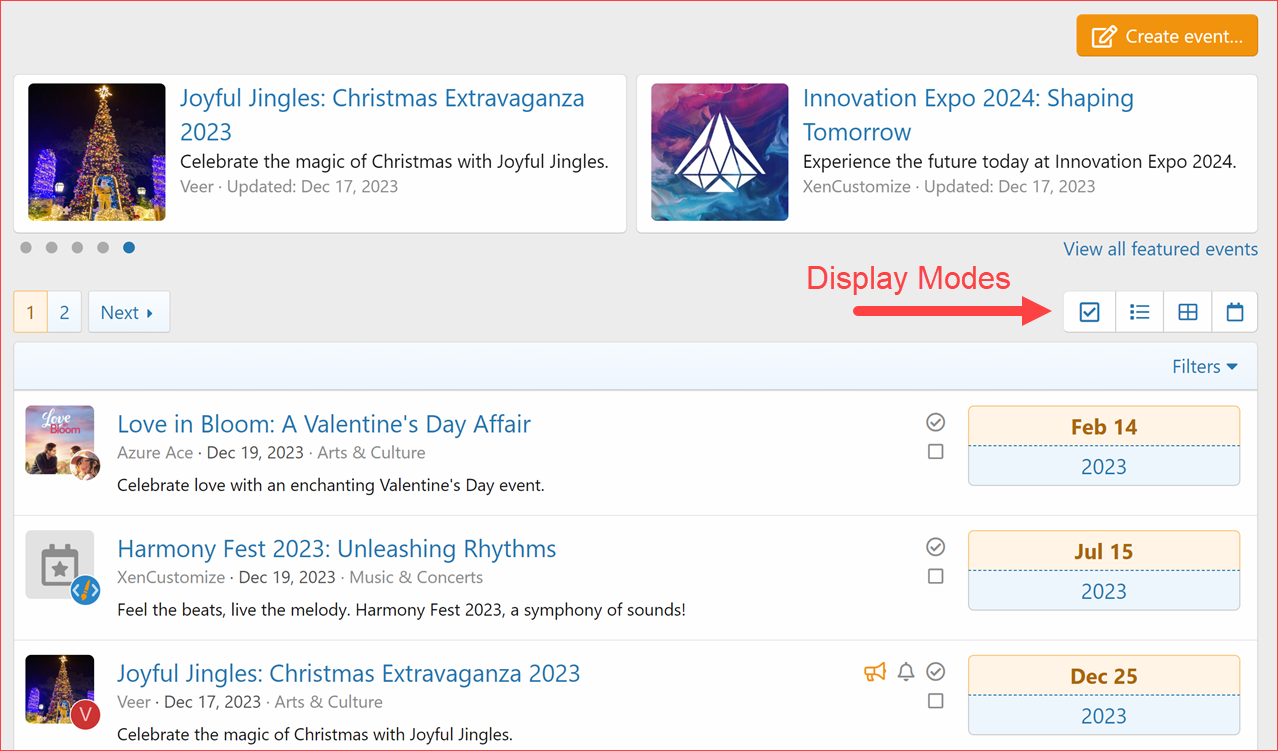
Display mode buttons on Calendar mode
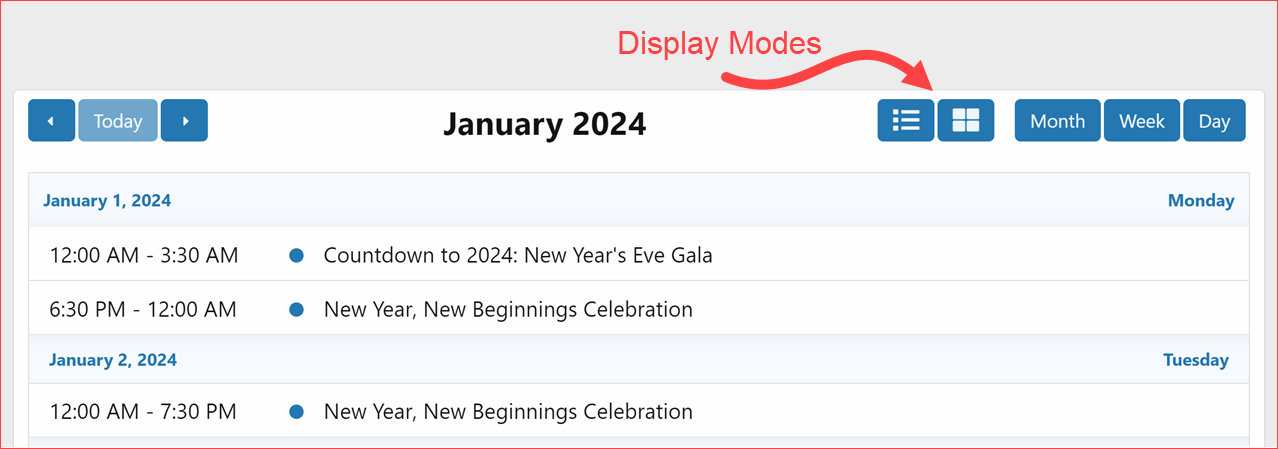
Admin Options: More calendar options

If you like this update and appreciate our commitment and hard work, please take a minute out of your valuable time to rate the add-on


! Introducing version 1.2.0, this update encompasses a suite of new features, including an enhanced calendar, versatile display modes, the requested Full Day and Repeating Events options, among other significant enhancements.The new price from this version will be $65. To our customers who previously purchased it for $45, we're offering the option to contribute an additional $20 to support our development efforts (click here to upgrade). While this additional payment is not mandatory and you will still receive the update regardless, it greatly helps us cover the extensive development costs of v1.2.0. Your support is deeply appreciated, but please know that it's okay if you choose not to contribute the extra amount.
We hope you enjoy the new and improved Events Manager!
 New Features
- Calendar Display Mode (Suggested by @btmgreg @JBS @Dragonsys @smallwheels and others)
- Added a brand new Calendar display mode
- Easy switch between the available display modes
- Calendar
- List
- Card Grid
- Filters support available in List and Card Grid display modes
- Calendar Options
- Added new options to control and customize the Calendar:
- Event List Display Mode (Index)
- Calendar
- List
- Card Grid
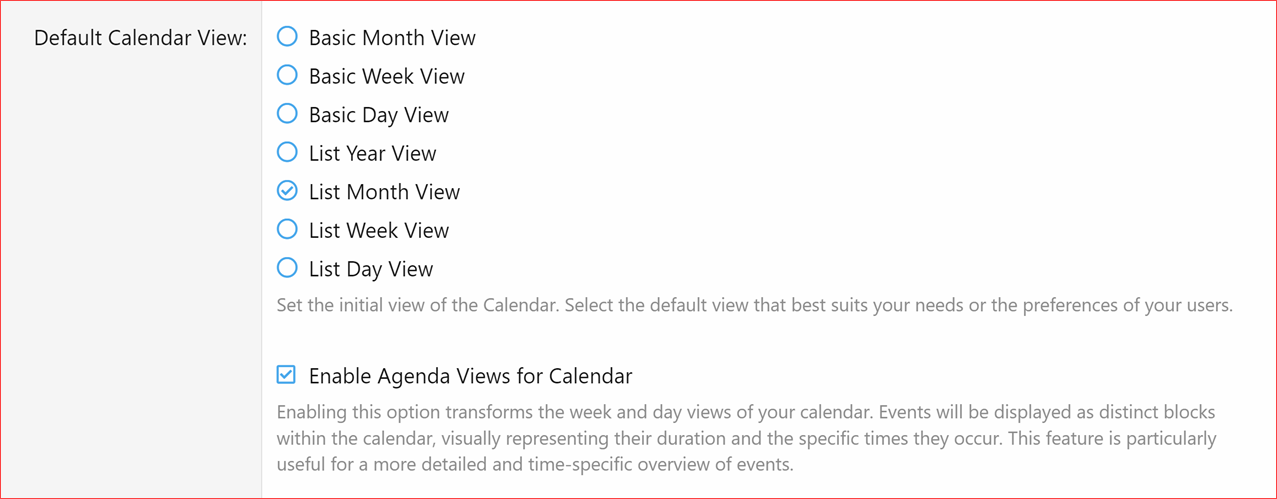
- Default Calendar View
- Set the initial view of the Calendar. Select the default view that best suits your needs or the preferences of your users.
- Basic Month View
- Basic Week View
- Basic Day View
- List Year View
- List Month View
- List Week View
- List Day View
- Set the initial view of the Calendar. Select the default view that best suits your needs or the preferences of your users.
- Enable Agenda Views for Calendar
- Enabling this option transforms the week and day views of your calendar. Events will be displayed as distinct blocks within the calendar, visually representing their duration and the specific times they occur. This feature is particularly useful for a more detailed and time-specific overview of events.
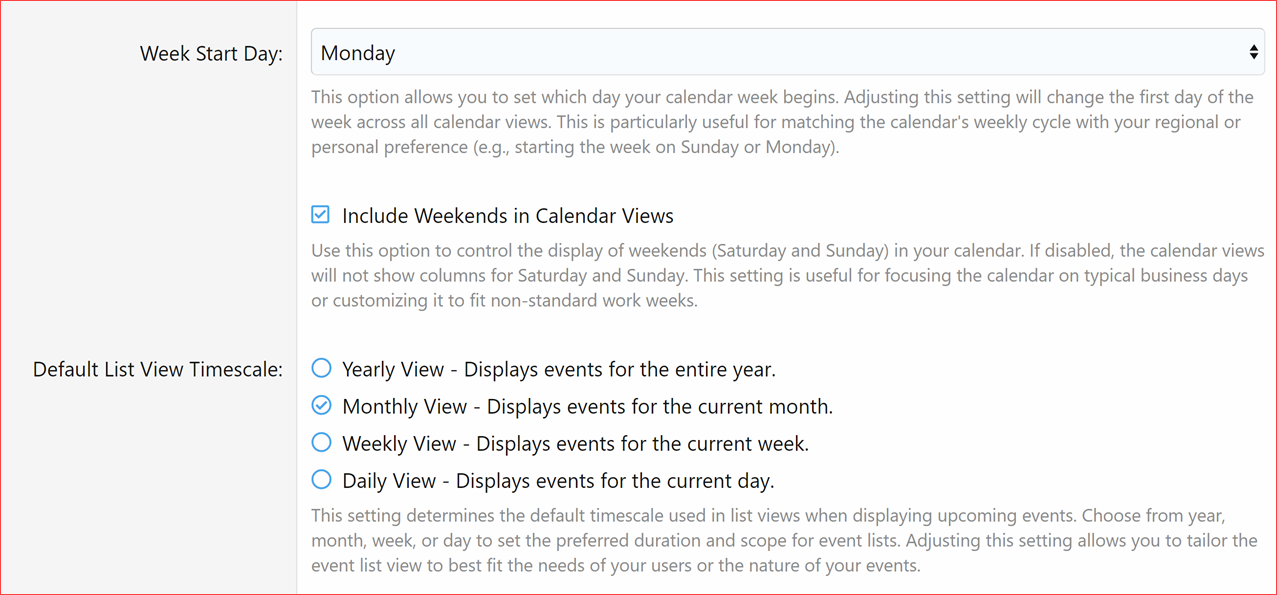
- Week Start Day
- This option allows you to set which day your calendar week begins. Adjusting this setting will change the first day of the week across all calendar views. This is particularly useful for matching the calendar's weekly cycle with your regional or personal preference (e.g., starting the week on Sunday or Monday).
- Include Weekends in Calendar Views
- Use this option to control the display of weekends (Saturday and Sunday) in your calendar. If disabled, the calendar views will not show columns for Saturday and Sunday. This setting is useful for focusing the calendar on typical business days or customizing it to fit non-standard work weeks.
- Default List View Timescale
- This setting determines the default timescale used in list views when displaying upcoming events. Choose from year, month, week, or day to set the preferred duration and scope for event lists. Adjusting this setting allows you to tailor the event list view to best fit the needs of your users or the nature of your events.
- Yearly View - Displays events for the entire year.
- Monthly View - Displays events for the current month.
- Weekly View - Displays events for the current week.
- Daily View - Displays events for the current day.
- This setting determines the default timescale used in list views when displaying upcoming events. Choose from year, month, week, or day to set the preferred duration and scope for event lists. Adjusting this setting allows you to tailor the event list view to best fit the needs of your users or the nature of your events.
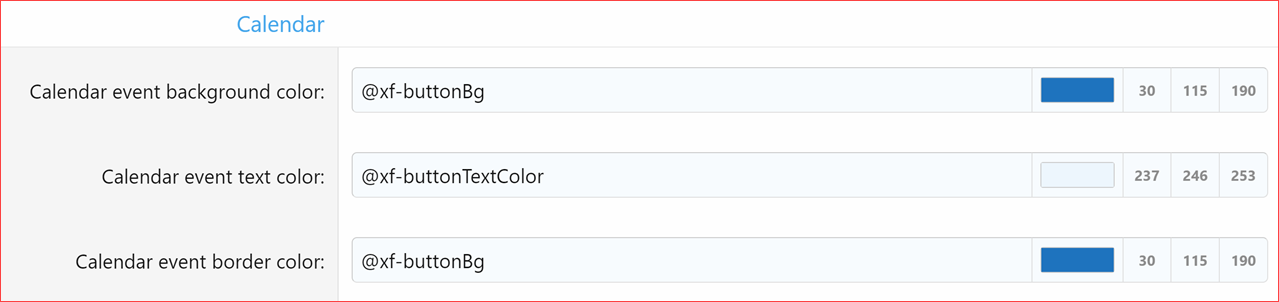
- Calendar Style Properties
- Added new color style properties to customize the styling of Calendar Events:
- Calendar Event Background Color
- Calendar Event Text Color
- Calendar Event Border Color
- Added new color style properties to customize the styling of Calendar Events:
- RSVP Registration Method (Suggested by @smallwheels)
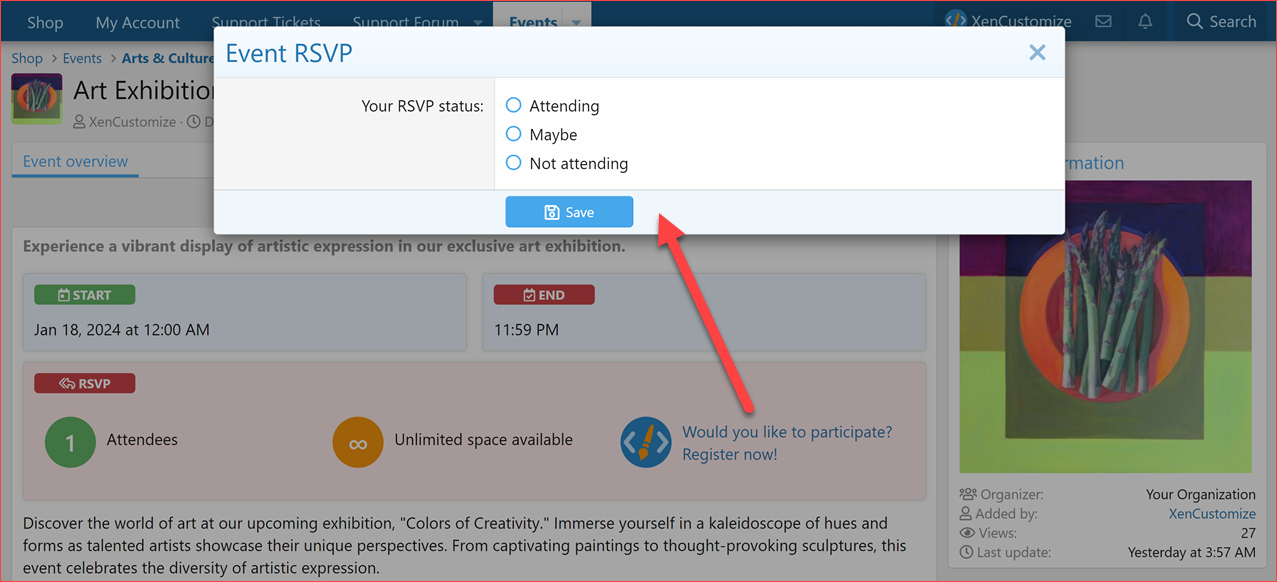
- Choose the method for event RSVP registration. Select 'One-Click Quick RSVP Register' for a streamlined registration process, or 'RSVP Status Window' to allow users to select their RSVP status during registration:
- Quick RSVP Registration
- Choose RSVP Status during Registration
- Choose the method for event RSVP registration. Select 'One-Click Quick RSVP Register' for a streamlined registration process, or 'RSVP Status Window' to allow users to select their RSVP status during registration:
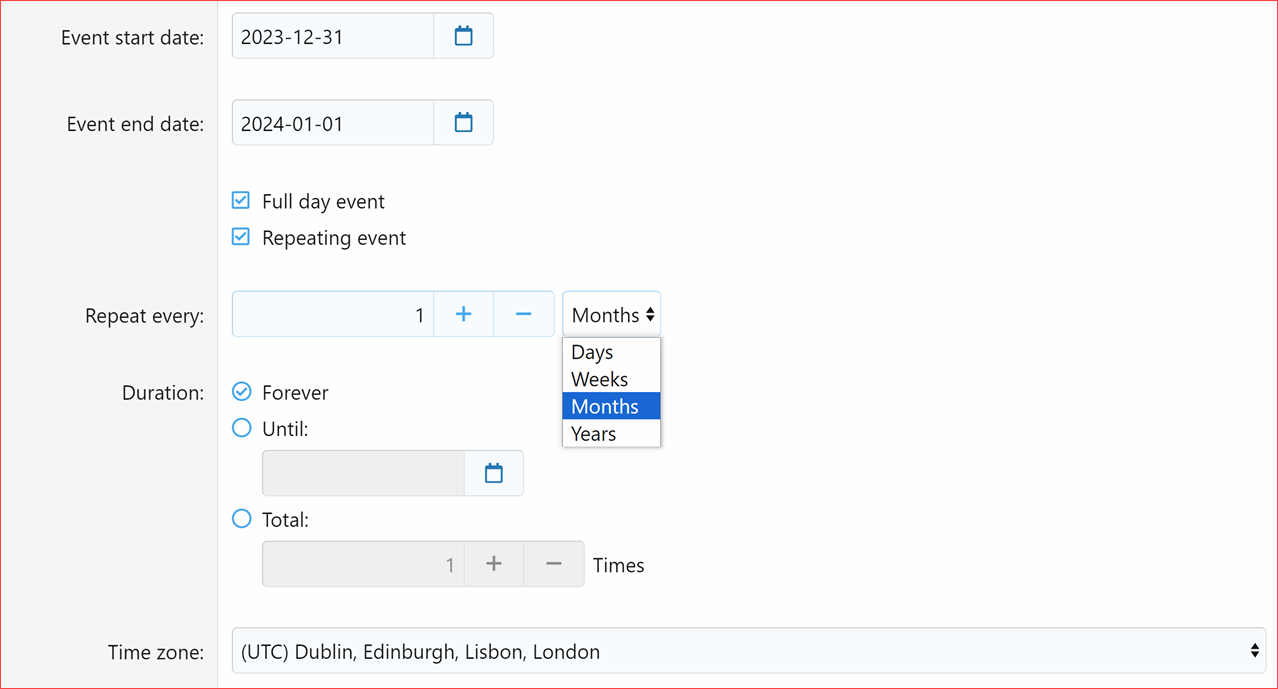
- Full Day Event
- Added "Full Day Event" Feature (Suggested by @smallwheels)
- Event creators can now utilize a new checkbox option to mark an event as a full day. This enhancement eliminates the need to manually enter start and end times for such events, streamlining the creation process and saving clicks. Note that it remains essential for event creators to accurately specify the start and end dates for these full day events.
- Repeating Events
- Introduced "Repeating Events" Functionality (Suggested by @smallwheels)
- A significant update for event creators is the addition of the "Repeating Events" feature.
- This new functionality allows event creators to designate an event as a repeating one via a checkbox.
- Upon selection, creators have the flexibility to set the event to repeat at regular intervals - daily, weekly, monthly, or yearly.
- Furthermore, the duration of the repeating event can be customized to either continue indefinitely ("Forever"), conclude on a specific date, or repeat for a predefined total number of times.
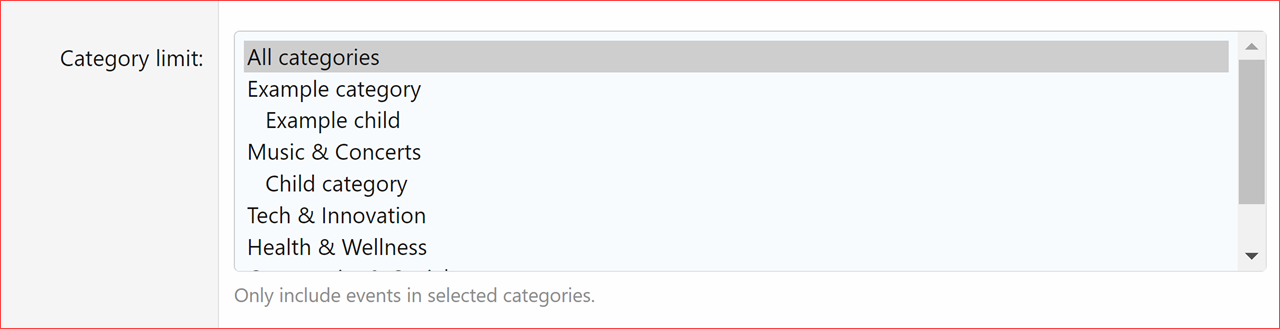
- Category Choices for Upcoming Events Widget
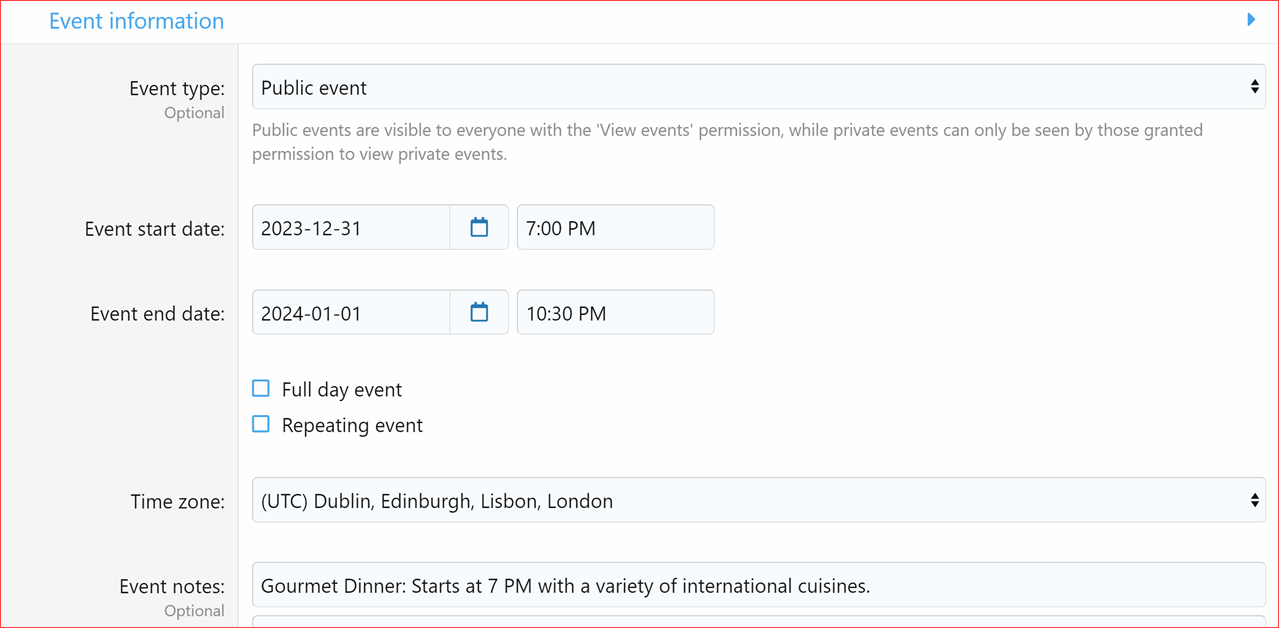
- Event Time Zone
- Implemented a feature for selecting a time zone for each event during its creation and editing.
- Cron entry
- Added a cron entry to auto rebuild next event dates.
 Changes:
- Event start and end date fields are now required fields when creating and editing events.
- When it's a full-day event or the start and end dates are the same and only the times differ, then on the event view page, the end date section will show only the end time. For example: Start
Jan 16, 2024 at 12:00 AM, End2:00 AM - On the event index page, in the list display mode, we now display only the start day, month, and year. The end date has been removed from this area to better accommodate repeat events, as well as to reduce clutter and maintain consistency with the other display mode, Card Grid. This area will undergo further changes once we implement Event Reviews, as there will be space allocated for star ratings.
- The 'Manage Your Active Events' page, along with many other sections where dates are displayed, has been updated to accurately reflect the dates in line with our newly implemented time zone and repeating event features.
 Bug Fixes
- Missing Email Templates
- Added missing email template
xcu_event_watched_category_event. (Reported by @Azure Ace)
- Added missing email template
- Missing Phrases
- Added missing phrases on Alert Preferences page. (Reported by @smallwheels)
- Resolved an issue where the active/inactive action link was incorrectly displayed to users without event editing permissions. (Reported by @smallwheels)
- Fixed time offset of one to two hours when creating an event (Reported by @smallwheels)
 Screenshots
Admin Option: Event List Display Mode
Choose the display mode you want to use to display events on the index pages. Note that category pages will continue to display events in a list view.Month view
Admin Option: Default Calendar View
Set the initial view of the Calendar. Select the default view that best suits your needs or the preferences of your users.List month view (default)
List week view
List day view
Display Modes:
Display mode buttons on card grid modeDisplay mode buttons on list mode
Display mode buttons on Calendar mode
Admin Options: More calendar options
Style Properties for Calendar Events
Calendar event background color, Calendar event text color and Calendar event border colorAdmin Option: RSVP Registration Method:
Choose the method for event RSVP registration. Select 'One-Click Quick RSVP Register' for a streamlined registration process, or 'RSVP Status Window' to allow users to select their RSVP status during registration.Time Zone setting per event
Full day event & Repeat options per event
Upcoming Events Widget
Optional category limit What's Next?
- Update on Event Reviews Feature: If you've been keeping up with our development updates, you're aware that we've been working on the Event Reviews feature. We decided to postpone it to prioritize the early release of v1.2. Now, we'll be picking up where we left off and aiming to include it in version 1.3.0.
- Maintenance and Other Add-ons: Following the release of 1.2, our focus will shift primarily to maintenance for a while, as we also need to update our other add-ons. There are pending developments for the Profile Audio Player & Library and other add-ons, so we'll be directing our development efforts there next.
- Implementing User Suggestions: Since our initial release, we've dedicated considerable time to implementing user suggestions. We now consider the Events Manager to be feature-complete, in line with our goals for the product. Going forward, any new suggestions will require additional funding and will be added to the final product only if we choose to include them.
Upgrade Notes
- When upgrading please ensure that you
 the "Overwrite existing files for add-on rebuilds / upgrades" option.
 - If uploading files using an FTP or file manager, you have to overwrite all files.
- After upgrading, please make sure to revert the modified templates to ensure everything work correctly.
 Rate and Review
If you like this update and appreciate our commitment and hard work, please take a minute out of your valuable time to rate the add-on


